Preparation:
- Laptop/PC
- Setup file
- Double click the setup file,then click “Next” to finish the installation
- Run the RIP software,then send us the Device Code
- We will send you the user name & license key to run the RIP software

Software Introduction:
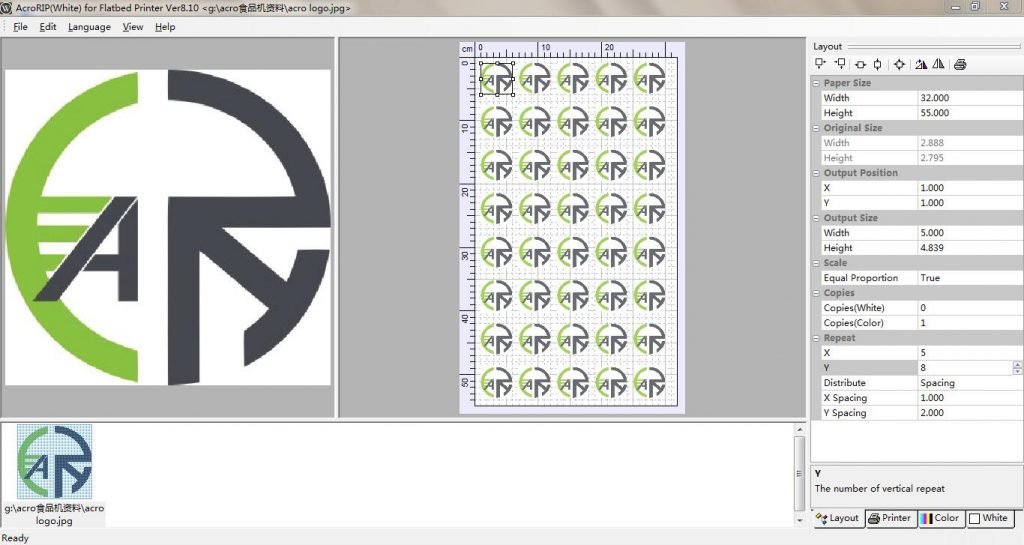
1,Double click the software icon,then you will see the software overall.
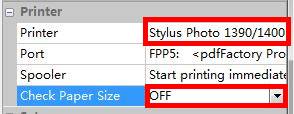
2, For our A4 size food printer, you must remember Three key points, and then the printer will print correctly. In the printer selection, you must always choose: Printer=Stylus Photo 1390/1400,Port=USB001(which is connected L800), Check Paper Size=OFF.
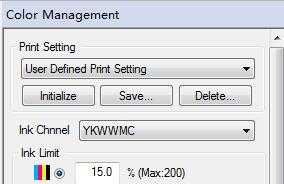
3, Go to Color Management, you can choose: Color Mode= Y K W W M C. Ink limit= 8 ~ 15%
4, Go to Layout section, set the paper size: Width=21cm,Height=29cm
5, Load a photo into our RIP software; you can change output position, output size as you like.
6, The useful Repeat function, you can put the number of X & Y to repeat the same artwork. See attached photo:

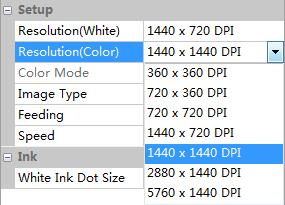
7,You can change the printing quality by raising the resolution (We use 1440*1440DPI mostly). See below photo.
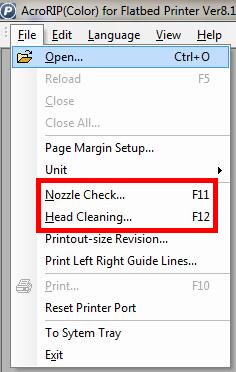
8,You can do Nozzle Check & Head Cleaning from our software. See below photo